Getting Started
Installation Guide
Copy the below mentioned stylesheet link in your html file in the head tag to load uiVibe to your project.
<link rel="stylesheet" href="https://uivibe.netlify.app" />
To import the styles in css file, use the code snippet given below
@import url(https://uivibe.netlify.app/styles/main.css);
References
1. Icons from font-awesome
2. Google Fonts
3. Highlight.js - for code snippets
Avatar
The Avatar component can be used to represent a user's display picture, initials, etc
Image Avatar
Image avatar can be used with three different sizes as per your use-case. The three different sizes are normal "avatar" , smaller "avatar-sm" and larger "avatar-lg"
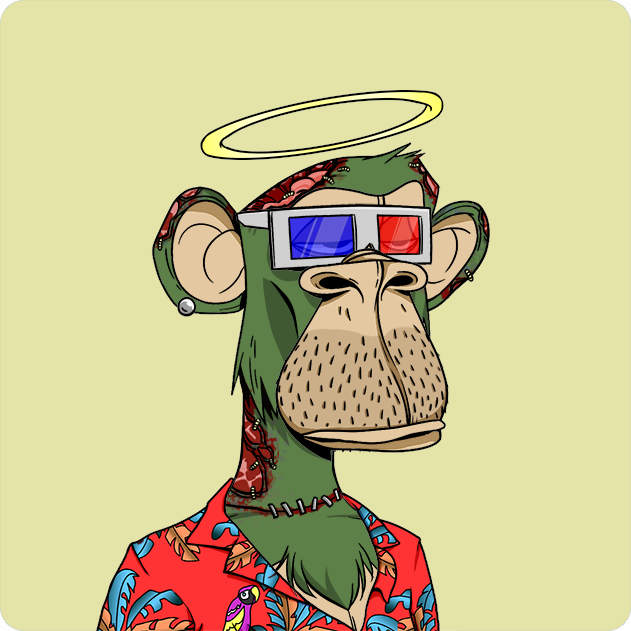
                    <img class="avatar" src="img-url-xyz" alt="avatar" />

<img class="avatar avatar-sm" src="img-url-xyz" alt="avatar" />

<img class="avatar avatar-lg" src="img-url-xyz" alt="avatar" />
Letter Avatar
Letter avatar can be created using avatar avatar-text with three different sizes in the div tag.
                    <div class="avatar avatar-text avatar-sm">AB</div>

<div class="avatar avatar-text ">AB</div>

<div class="avatar avatar-text avatar-lg">AB</div>
Badge
A badge can be generally used for user verification status, visibility, notifications, etc.
Badge on Avatars
You can change the color of these badges by writing "badge-red", "badge-blue", "badge-green" and "badge-pink"
                    <div class="badge-item">
        <img class="avatar" src="../assets/avatar.png" alt="avatar" />
        <span class="badge badge-red"></span>
</div>

<div class="badge-item">
        <img class="avatar" src="../assets/avatar.png" alt="avatar" />
        <span class="badge badge-green"></span>
</div>

<div class="badge-item">
        <img class="avatar" src="../assets/avatar.png" alt="avatar" />
        <span class="badge badge-blue"></span>
</div>

<div class="badge-item">
        <img class="avatar" src="../assets/avatar.png" alt="avatar" />
        <span class="badge badge-pink"></span>
</div>
Badge on Icons
Badges on Icons have so many different use-cases like using icons in messages, notifications, etc. Given below badge can be used in notification icons, calender and message icons.
                        <div class="badge-item">

        <i class="far fa-calendar fa-2x"></i>

        <span class="badge-icon">12</span>

</div>
Alert
Alerts are mostly used to communicate a state that affects a system, feature or a page!
You can view the four different types of alert messages given below:
Application saved successfully!
This is an info alert
This is a warning alert
This is an error alert
                        <div class="alert-item alert-success">
        <i class="alert-icon fa fa-check-circle"></i>
        <p>Application saved successfully!</p>
</div>

<div class="alert-item alert-info">
        <i class="alert-icon fa fa-check-circle"></i>
        <p>This is an info message</p>
</div>

<div class="alert-item alert-warning">
        <i class="alert-icon fa fa-check-circle"></i>
        <p>This is a warning message</p>
</div>

<div class="alert-item alert-error">
        <i class="alert-icon fa fa-check-circle"></i>
        <p>This is an error message</p>
</div>
Cards
A card can be used as a container for text, photos, and actions in the context of a single subject.
Given Below are 6 types of cards with class name "card" i.e Text only card, Card with text overlay "card-text-overlay", Card with shadow "card-shadow", Horizontal Card "card-horizontal", Card with Badge "card-badge" and Card with Dismiss "card-badge"
Text only Card
                            <div class="card card-text-overlay">
        <div class="card-body">
                <div class="card-body-title">
                        Fake Punk NFT
                </div>
                <div class="card-body-subtitle">
                        by Arjun Bharti
                </div>
                <div class="card-description">Yo, yacht ape club crypto nft thugs
                        party is one of the largest NFT OGs thugs group
                        focused on looting people's money.
                        Join us and enjoy the premium thug club!
                        <br/>NFT TO MOON 🚀
                </div>
        </div>
</div>
Cards with text overlay
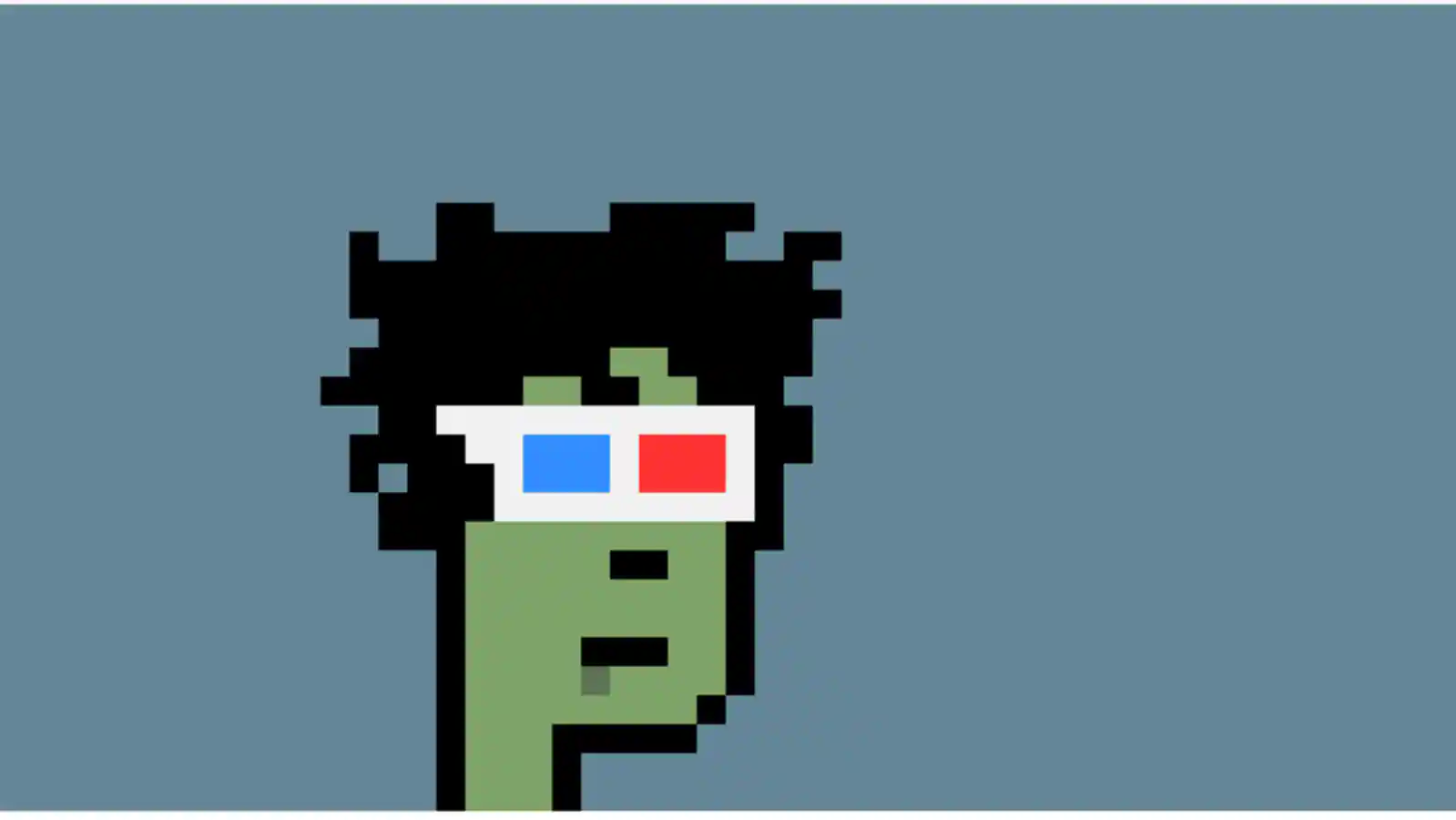
                            <div class="card card-text-overlay">
        <div class="card-img-container">
                <img src="../assets/card-image.png" alt="" class="card-img">
        </div>
        <div class="card-body">
                <div class="card-title-over">
                        <div class="body-title-over">
                                Fake Punk NFT
                        </div>
                        <div class="body-subtitle-over">
                                by Arjun Bharti
                        </div>
                </div>
                <div class="card-description">Yo yacht ape club crypto nft thugs party. Join us and enjoy the premium thug club!</div>
                        <div class="card-action-items">
                                <div class="card-button">
                                        <button class="btn-card">BUY</button>
                                        <button class="btn-card">VIEW MORE</button>
                                </div>
                                <div class="card-actions">
                                        <i class="gg-bookmark bookmark"></i>
                                        <i class="gg-share share"></i>
                                        <i class="gg-options options"></i>
                                </div>
                        </div>
                </div>
</div>
Card with Shadow
                            <div class="card card-text-shadow">
        <div class="card-img-container">
                <img src="../assets/card-image.png" alt="" class="card-img">
        </div>
        <div class="card-body">
                <div class="card-title-over">
                        <div class="body-title-over">
                                Fake Punk NFT
                        </div>
                        <div class="body-subtitle-over">
                                by Arjun Bharti
                        </div>
                </div>
                <div class="card-description">Yo yacht ape club crypto nft thugs party. Join us and enjoy the premium thug club!</div>
                        <div class="card-action-items">
                                <div class="card-button">
                                        <button class="btn-card">BUY</button>
                                        <button class="btn-card">VIEW MORE</button>
                                </div>
                                <div class="card-actions">
                                        <i class="gg-bookmark bookmark"></i>
                                        <i class="gg-share share"></i>
                                        <i class="gg-options options"></i>
                                </div>
                        </div>
            </div>
</div>
Horizontal Card
                            <div class="card card-horizontal">
        <div class="card-horizontal-head">
                <img src="../assets/card-image.png" alt="horizontal-img" class="card-horizontal-img">
                <div class="card-body">
                        <div class="card-body-title">
                                Fake Punk NFT
                        </div>
                        <div class="card-body-subtitle">
                                by Arjun Bharti
                        </div>
                </div>
        </div>
        <div class="card-horizontal-action-items">
                <div class="card-action-items">
                        <button class="btn-card">BUY</button>
                        <button class="btn-card">VIEW MORE</button>
                        <div class="card-horizontal-actions">
                                <i class="fa fa-bookmark bookmark"></i>
                                <i class="fa fa-share share"></i>
                                <i class="fa fa-ellipsis-v options"></i>
                        </div>
                </div>
        </div>
</div>
Card with Badge
                            <div class="card card-text-shadow">
        <div class="card-img-container">
                <img src="../assets/card-image.png" alt="" class="card-img">
        </div>
        <div class="card-body">
                <div class="card-title-over">
                        <div class="body-title-over">
                                Fake Punk NFT
                        </div>
                        <div class="body-subtitle-over">
                                by Arjun Bharti
                        </div>
                </div>
                <div class="card-badge">
                        Trending
                </div>
                <div class="card-description">Yo yacht ape club crypto nft thugs party. Join us and enjoy the premium thug club!</div>
                        <div class="card-action-items">
                                <div class="card-button">
                                        <button class="btn-card">BUY</button>
                                        <button class="btn-card">VIEW MORE</button>
                                </div>
                        </div>
                </div>
</div>
Card with Dismiss
                                <div class="card card-text-shadow">
        <div class="card-img-container">
                <img src="../assets/card-image.png" alt="" class="card-img">
        </div>
        <div class="card-body">
                <div class="card-title-over">
                        <div class="body-title-over">
                                Fake Punk NFT
                        </div>
                        <div class="body-subtitle-over">
                                by Arjun Bharti
                        </div>
                </div>
                <div class="card-badge">
                        <i class="fa fa-times"></i>
                </div>
                <div class="card-description">Yo yacht ape club crypto nft thugs party. Join us and enjoy the premium thug club!</div>
                        <div class="card-action-items">
                                <div class="card-button">
                                        <button class="btn-card">BUY</button>
                                        <button class="btn-card">VIEW MORE</button>
                                </div>
                        </div>
                </div>
        </div>
</div>
Images
The Image component is used to display images
Responsive Image
Use w-size and h-size in the class name and give the required width. For rounded image use "img-rounded" in the class name
                            <img src="../assets/avatar.png" alt="" class="w-10 h-10">

<img src="../assets/avatar.png" alt="" class="img-rounded w-10 h-10">
The input component is a component that is used to get user input in a text field.
Text box
                            <label for="" class="input-label">Label</label>
<input
        type="email"
        name=""
        id=""
        class="input"
        placeholder="Enter your email here..."
>
Input validation
Use the code snippets mentioned below:
                            <label for="" class="input-label">Label</label>
<input
        type="email"
        name=""
        id=""
        class="input input-label-success"
        placeholder="Enter your email here..."
>

<label for="" class="input-label">Label</label>
<input
        type="email"
        name=""
        id=""
        class="input input-label-warning"
        placeholder="Enter your email here..."
>

<label for="" class="input-label">Label</label>
<input
        type="email"
        name=""
        id=""
        class="input input-label-error"
        placeholder="Enter your email here..."
>
Text utilities
Some basic Text Utilities which may come in handy while writing code for your project.
Headings with different sizes, text color and positing
                            <div class="text-xl">Heading 1</div>

<div class="text-l text-grey">Heading 2</div>

<div class="text-m text-center">Heading 3</div>

<div class="text-sm text-center">Heading 4</div>
Lists
List component is used to display list items. It rendes a ul element by default.
Spaced List
- This is Item one
- This is Item two
- This is Item three
                            <ul class="list">
        <li class="list-item">This is Item one</li>
        <li class="list-item">This is Item two</li>
        <li class="list-item">This is Item three</li>
</ul>
Stacked List
-
Fake Ape NFT
by Arjun Bharti
-
Fake Ape NFT
by Arjun Bharti
-
Fake Ape NFT
by Arjun Bharti
For stacked list, use "list-stack" in the li tag class name.
Use the code snippets mentioned below:
                            <ul class="list">
        <li class="list-stack">
                <div class="list-item-stacked">
                        <img src="../assets/avatar.png" alt="" class="w-5 img-rounded">
                        <div class="list-item-text">
                                <p>Fake Ape NFT</p>
                                <p class="text-xsm">by Arjun Bharti</p>
                        </div>
                </div>
        </li>
        <li class="list-stack">
                <div class="list-item-stacked">
                        <img src="../assets/avatar.png" alt="" class="w-5 img-rounded">
                        <div class="list-item-text">
                                <p>Fake Ape NFT</p>
                                <p class="text-xsm">by Arjun Bharti</p>
                        </div>
                </div>
        </li>
        <li class="list-stack">
                <div class="list-item-stacked">
                        <img src="../assets/avatar.png" alt="" class="w-5 img-rounded">
                        <div class="list-item-text">
                                <p>Fake Ape NFT</p>
                                <p class="text-xsm">by Arjun Bharti</p>
                        </div>
                </div>
        </li>
</ul>
Modal
A modal is a dialog box/popup window that is displayed on top of the current page
Modal Heading
Demo
                            <div class="modal">
        <p class="modal-heading text-m">Modal Heading</p>
        <p class="modal-content">This is a modal content. Add information here related
                                                        to your project or whatever you want to add here.
        </p>
        <div class="modal-footer">
                <button class="btn btn-primary">Submit</button>
                <button class="btn btn-secondary">Cancel</button>
        </div>
</div>
Grids
A primitive useful for grid layouts. Grid is Box with display: grid and it comes with helpful style shorthand. It renders a div element.
Grid with two items
Use "grid grid-col-2" in the class name of your div tag.
Use the code snippets mentioned below:
                            <div class="grid grid-col-2">
        <div class="grid-item">
                one
        </div>
        <div class="grid-item">
                two
        </div>
        <div class="grid-item">
                three
        </div>
        <div class="grid-item">
                four
        </div>
</div>
Grid with three items
Use "grid grid-col-3" in the class name of your div tag.
Use the code snippets mentioned below:
                            <div class="grid grid-col-3">
        <div class="grid-item">
                one
        </div>
        <div class="grid-item">
                two
        </div>
        <div class="grid-item">
                three
        </div>
        <div class="grid-item">
                four
        </div>
</div>
Responsive Grid
Use "grid-responsive" in the class name of your div tag.
Use the code snippets mentioned below:
                            <div class="grid grid-responsive">
        <div class="grid-item">
                one
        </div>
        <div class="grid-item">
                two
        </div>
        <div class="grid-item">
                three
        </div>
        <div class="grid-item">
                four
        </div>
</div>
Toast
The toast component is used to give feedback to users after an action has taken place.
For success message "toast toast-success", for info "toast toast-info" for warning "toast toast-warning"
and error "toast toast-error".
                            <div class="toast toast-success">
        <p>Your response saved successfully!</p>
        <a class="toast-btn">
                <i class="fa fa-times"></i>
        </a>
</div>
<div class="toast toast-info">
        <p>This is an information</p>
        <a class="toast-btn">
                <i class="fa fa-times"></i>
        </a>
</div>
<div class="toast toast-warning">
        <p>This is a warning</p>
        <a class="toast-btn">
                <i class="fa fa-times"></i>
        </a>
</div>
<div class="toast toast-error">
        <p>Sorry, an error occured!</p>
        <a class="toast-btn">
                <i class="fa fa-times"></i>
        </a>
</div>